By: Kayla Cunningham
EDU-551-0500
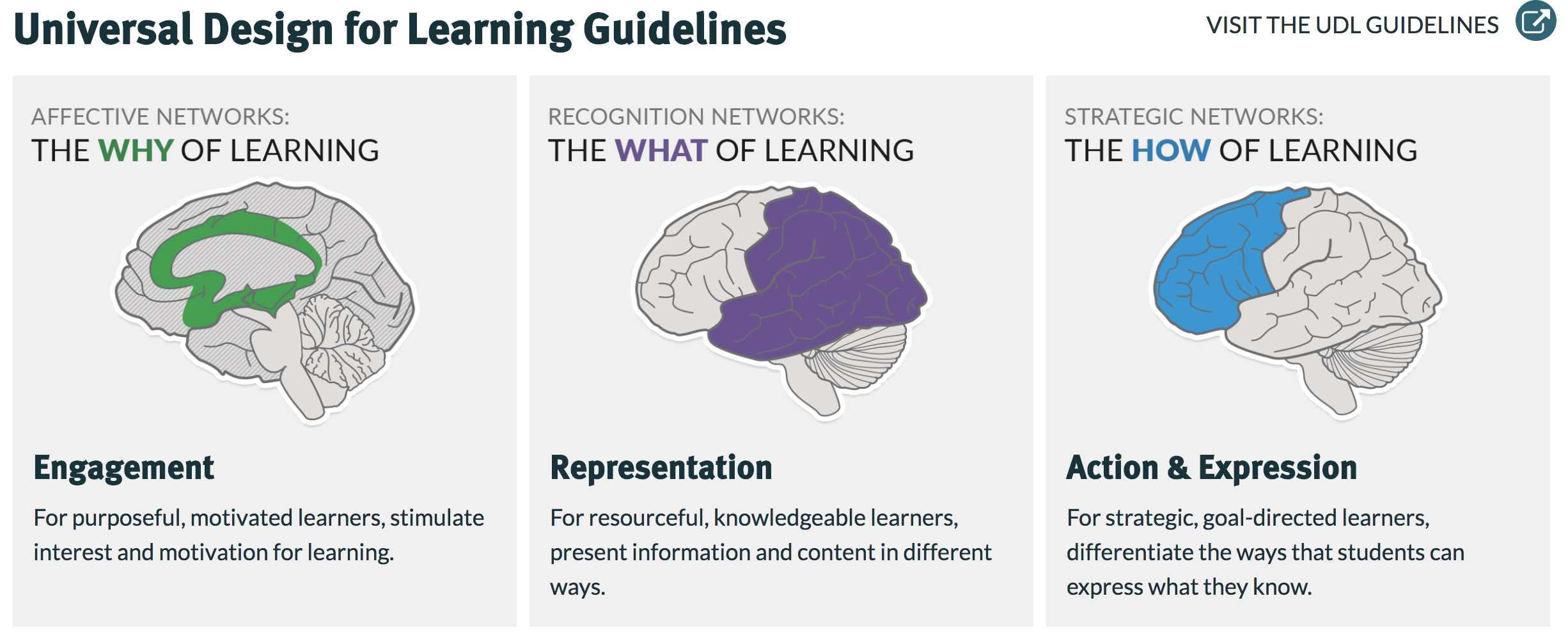
Picture taken from: (Michigan State University, 2020).
Assessing Technology-Based Resources for Differentiation
Using current and relevant technology-enriched learning experiences can help to support differentiation in the classroom. Wesley Church accesses and uses several current technologies and utilizes that technology to meet the individual needs of students and prepare them for 21st century learning. After COVID-19 hit, the church and Bible study classes had to go online. We were online for a year and a half before slowly returning to in person. Without technology, meeting with our teen and children’s groups would have been impossible.
Technology has made this last year possible. Current technologies that can be used to appropriately support differentiated instruction and enrich student learning styles. Today I am going to examine the following technologies: Google Classroom, Flipgrid, and Explain Everything.
TECHNOLOGIES
Picture taken from: (Keeler, 2014).
GOOGLE CLASSROOM
Google Classroom: As an educator, Google Classroom saved me this past year during the pandemic. There were many benefits to this platform. Most schools used this platform and so the students were already familiar with it and had been exposed to this technology. It is very user friendly and it is a paperless tool, helpful for the environment friendly educators. Over the past several years, I’ve had students ask me to make copies because they lose a paper. I’ve killed a lot of trees over the years. With Google Classroom, I post my material, PPTs, and activities online. Students can see an assignment digitally if they lose their paper copy. They can also download attachments and Word documents to their own devices. As a teacher, I have iPads for all my students, just in case someone does not have a cell phone or computer to use. I try not to assign to much new work online as homework and allow students a timeline to work at their own pace and finish the activities under the unit. The forests in Oregon make internet access difficult, and many of my students are not able to get online at home because of this. I do print out a single copy of the assignments, just in case students are not able to access the internet at home. I do not print a second, so my students generally do a good job of not losing it.
Cost:
- $0.00
User friendliness for student and teacher: As a teacher, this is easy to use and it saves you time. You have the ability to access information anywhere, and it stores all the information for you in one place. You can communicate with parents or youth. Students learn to love this platform. It comes in handy when they lose an assignment or paper, or they are absent and want to see what they missed. It is also easy to collaborate with other students
Ease of use: This was easy for students to learn. Most schools went online for over a year and used this platform. All students seem familiar with it now. I still modeled it for students and walked them through how to and expectations. It was easy to teach students. I loved Google Classroom and plan to use it in the future. It is convenient to have all my work uploaded and saved for students in one location. Students know where to look to find information.
Cross-curricular ability: This platform offers teachers to connect and collaborate on materials and topics to align with what students are learning. It allows for group collaboration, which prepares students to learn and work together—something students will have to do in their future occupational setting.
Practicality of incorporation: Google Classroom is easy to incorporate in class. It is also accessible to teachers and student from a computer or mobile device. It doesn’t matter what platform you use. The documents are uploaded to the Classroom folder on drive. Users can access this any time and see what they missed, upcoming information, PPT reviews, videos, etc. If a student is sick or they leave on a family tip, they can see what they have missed.
Google Classroom allows the teacher to differentiate for readiness by teaching Dependent to Independent. I start off with a PPT and lecture and then allow students to move independently with items posted in their Google Classroom. I often post extension activities under the unit that go beyond the lesson I am teaching. I have a lot of creative students who are creative. I try and capture their interest by allowing them write a poem, ot dong, or journal as if they are a character witnessing what we are talking about. A few students like to draw the concept we are learning about. A few love Weebly and working with a partner to create a website. All the instructions and activity options are posted on Google Classroom. I model to my students how to do the activities, and post step by step instruction videos I find on YouTube for things like using Weebly. I want to peek student’s interests, and learning styles, so I try and offer multiple options for activities.
Google Classroom is an appropriate instructional strategy that can support students with different learning styles and enrich their learning experiences, It can appeal to the visual, auditory, social, and kinesthetic learner. The teacher designs Google Classroom and includes different materials for different learners on the platform. The teacher has to be aware of the variation of methods he/she can use and activities and then post them accordingly. The teacher can impact the environment while students are on Google Classroom or doing an activity. The teacher can ensure the material is structured. Visual learners seeing, so you can teach using your PPTs before posting them online as a reference. You can model for students activities before setting them free on Google Classroom. Your auditory learners will learn by listening to you lecture. You also have YouTube videos for further explanations, or you ask students to watch a video to further their understanding and post that online. The Kinesthetic learners will learn by doing the work. Allow them to move around and stretch after a lecture and PPT and make sure some of the materials and activity choices are hands on, allowing them to build and create.
Google Classroom is an excellent platform that can be used to teach online or in-person. I know I would not have made it through this past year without it, and I plan to use it in my class in the future.
FLIPGRID
Picture taken from: (Wanamaker, 2018).
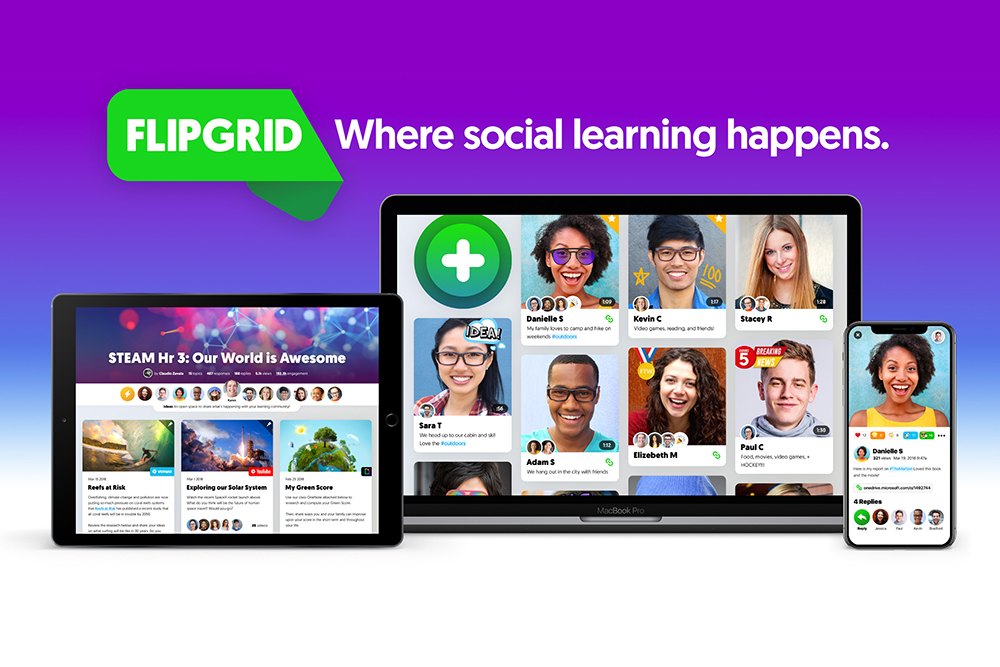
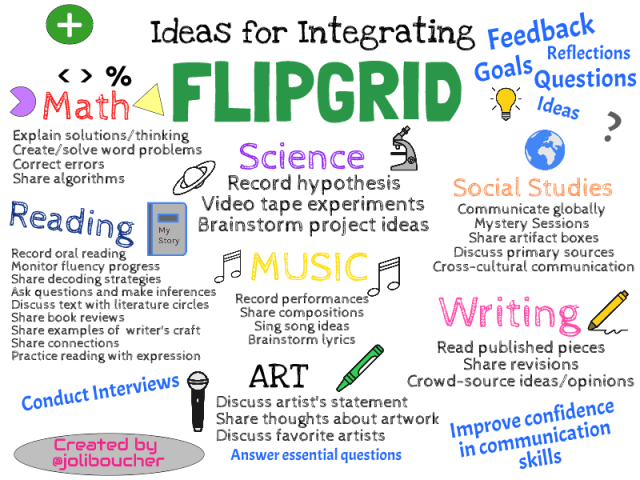
Flipgrid: This video sharing tool has many benefits and uses. It allows for teachers to communicate with students and sets up a community for students. As a teacher, you can create prompts. Students would sign in to answer those prompts with video responses. They can also reply to other students in the class. Generally, I only ask students to post a quick 1-2 minute video in response to a question.
Cost:
- $0.00 for starters
User friendliness for student and teacher: As a teacher, it took me a few times to learn how to create the code, assign a topic, and invite students. Once I learned how to do this, it became an essential part of teaching.Students can use this on their cell phones or computers. I would not use this for anyone under middle school age. Middle school students have a harder time grasping these technologies and need to be walked through the prompts several times. High school students pick this up very easy. “The video-sharing tool Flipgrid, as we all know, is popular in schools—so popular, in so many countries, that its rapid rise been attributed to “Flipgrid Fever.” The tool has been free for educators to use for over a year now after being acquired by Microsoft” (Nieven, 2020). Several schools and teachers use this as a tool. It is becoming more common for students to use.
Ease of use: One of the best things about Flipgrid is that it is easy to use. I set up an account as a teacher and then the students work in the account created. I have iPads for all my students, just in case someone does not have a cell phone or computer to use.
Cross-curricular ability: Students are able to record their answers on Flipgrid and make their own connections and conclusions based on material and questions posed. Flipgrid also makes it possible to collaborate with other schools and countries, which provides opportunities for students to practice speaking skills with others. This app is flexible and it helps students build problem solving, cause and effect relationships, and critical thinking skills. Students can collaborate together and communicate with classmates and others from around the world.
Picture taken from: (Vander Ark, 2019)
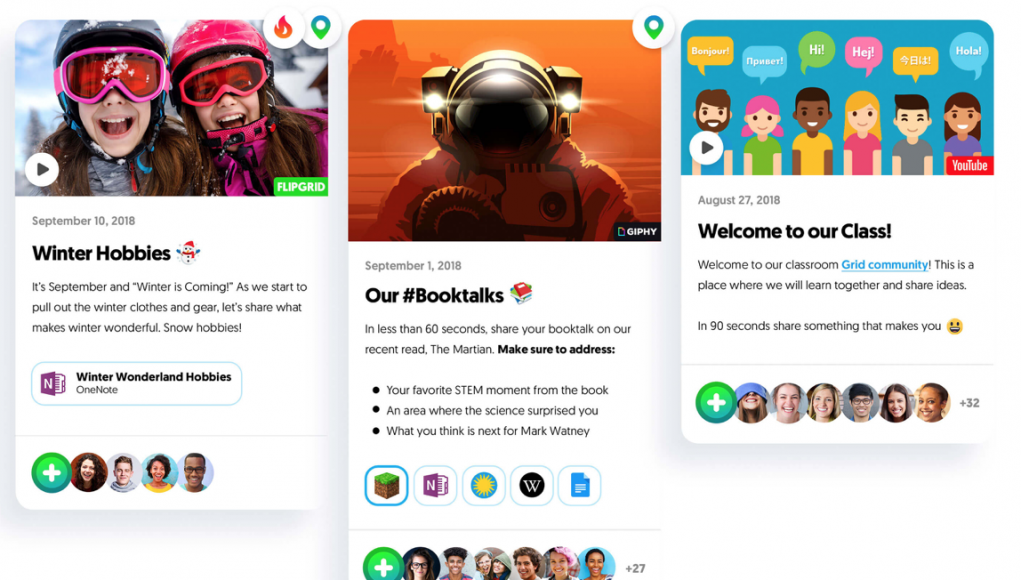
Practicality of incorporation: I was able to use this to post critical thinking questions and have students answer those questions based off what they learned. It is another way to check in with my students. I have even invited outside speakers from different churches and organizations in our community to post their own video. Students are able to share work, share reviews, have conversations, and reflect. It is a fun tool that students seem to enjoy. I also love that it is safe and students can learn to go online in a safe way and participate as digital citizens.
Flipgrid differentiates for readiness, interest, and learning styles. As a teacher, I can modify posts to meet my student’s needs. I can create a grid for student portfolios and then assign a topic for each of my students. This tool also allows me (the teacher) to work with my students one-on-one and make comments vs. lecturing the entire class. A student’s readiness, “Is the capacity to learn new material. A good task for a student’s readiness level will stretch a student’s knowledge past their independence level. This may take a student out of their comfort zone, but new material can be acquired in a supported environment” (Tomlinson, 2001). I assign students various books and readings and then ask them to respond based on them. Students have options to do an extension activity. Flipgrid allows students to start an assignment with the teacher dependently and then move to independent learning.
A student’s interest can also be taken into account using Flipgrid. “Sometimes the curriculum may seem restrictive, but different students will show interest in different topics throughout the semester. The idea of differentiating through interest is to “hook” a student on an area of study to keep their interest, which typically increases on task behavior and improves marks” (Tomlinson, 2001). Students are able to investigate with their groups, discuss topics that interest them, read in a literature circles, and apply what they have learned to real life.
Flipgrid is an appropriate instructional strategy that can support students and enrich learning experiences. “Flipgrid can be used every day or multiple times a day if students have frequent access to technology. Educators who use it every day are likely to use it as a part of regular assignments. They may use it to find out what students know at the beginning of a unit, to help students dive deeper into explaining and applying the content in a myriad of creative ways, or to evaluate the content at the end of the unit. Frequent users may also use Flipgrid as a way to start the day by involving every student in a discussion” (Flipgrid, n.d.). This is a great tool for creativity because it is interactive and it allows students to communicate and find their voice. This is a great way to get an entire class to talk and give opinions. It teaches students that it is important to have their voices heard, which is important to me as an educator. I want to hear all my student’s opinions, and unfortunately in a classroom setting this can be challenging with time constraints.
This technology appeals to the social learner. According to Flipgrid, the platform “has expanded many of its accessibility features to ensure that all students can participate. Students can use closed captioning when viewing videos, which also generates a full transcript for each video. Microsoft’s Immersive Reader can be used within both the closed captioning and any text within a topic to read the texts aloud and break up words into syllables for easier decoding” (Nieves, 2020). The collaboration appeals to many learning styles and it allows teams to work together.
I love the fact that students can add annotations in Flipgrid.
The visual learner is encouraged through pictures, drawings, and other creative prompts I put on the app.
When assigning Flipgrid work, I try and make it personal so students can relate to their own experiences. Students can pick topics they are interested in and find meaning
Picture taken from: (Flipped Tech Coaching, 2018).
EXPLAIN EVERYTHING
Picture taken from: (Explain Everything, 2019)
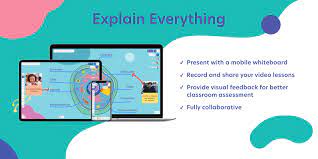
Explain Everything: This was an amazing tool, especially during online teaching. Explain Everything allows you to use a digital whiteboard. Students can share their knowledge by recording their voice. For differentiated instruction, students can share their knowledge and create a lesson to share with the class or other students. “For differentiated instruction, students can use this at any point during a unit to share their knowledge. It is also an opportunity for students who are more knowledgeable to create a lesson to share with other students” (Pro Tips, 2019).
Cost:
- $0.00 for starters
- $6.99 individuals per month
- $11.99 teams
User friendliness for student and teacher: This has been such an amazing platform for teachers during COVID. Students in high school found this easy to use. Students in lower grades got the hang of it after a few weeks and found it easy to use once I modeled it and they had time to practice it in class a few times.
Ease of use: This was easy for students to learn once I modeled it. It took me a few practice sessions to get the hang of this software, but once I did it was easy to teach students. I loved that it offered real time and continuous collaboration. I didn’t like having to download the Drive App. It was challenging to share devices amongst students, so this was challenging for the class and group work.
Cross-curricular ability: This platform is offered in several different languages. Which is great for ESL students. It allows for students to collaborate and work together, and it moves away from memorizing information to allowing students to draw their own conclusions and connect the dots.
Practicality of incorporation: I was able to use this technology to teach Bible Study to different age groups. The smartboard technology made learning interesting and it was nice to move away from the traditional PPT setting. “If you are a teacher in a one-to-one school district, or use eLearning days instead of make-up days at the end of the school year, Explain Everything will be your friend. The program allows you to easily flip your classroom, providing templates for the types of lessons you likely teach most often” (Explain Everything, 2019). This tool also allows me (the teacher) to work with my students one-on-one vs. lecturing the entire class.
Explain Everything differentiates for readiness, interest, and learning styles. To assess readiness, I will teach students slow to fast, and simple to complex, breaking down and structuring the unit into pieces before they are going to create on their own. Students will use a graphic organizer to plan their ideas and concepts before they begin using Explain Everything. As a teacher, I can create my own templates, or use one of theirs. It is easy to drag-drop and modify these to meet my needs. This is a great tool for creativity because it is interaction. This tool helps you (and your team) visualize everything. You can brainstorm ideas, draft, changes colors and shapes, use the tools to brainstorm, capture and edit images and photos with your camera, label items, add media or visual aids, and record your voice. This allows for users to be creative because they can record their ideas, thoughts, and reminders. They can explain information to others or make comments. The collaboration appeals to many learning styles and it allows teams to work together smoothly. Students can discover their interests by experimenting and messing around with the design and ideas. It can be fun to create a project using this platform app and it appeals to the interest of many students.
Explain Everything is an appropriate instructional strategy that can support students and enrich learning experiences, account for individual student differences and learning styles. Explain Everything can appeal to the visual, auditory, social, and kinesthetic learner. Students can create and build using creative tools. Students can visualize and reconstruct images and see visual imagery. Students can record their voices and hear comments from other students. Students can collaborate with each other virtually. This app appeals to all many types of learners and it is excellent for the classroom (online or in-person).

Picture taken from: (Ed2go, n.d.)
Select two of the technologies.
Explain Everything and Flipgrid each promotes learning and creates ownership of learning among the students.
Explain Everything is an amazing tool, but it is not free. I found the price was worth it, especially during distance learning. Students have a lot of creative ability with this app and they can type or display images. It teaches them how to edit material, which is excellent for hands on learners. It connects with Dropbox and Google Drive, which make it easy for students to collaborate.
Flipgrid is easy to use and allows for video discussion. It can be an everyday, several times a day application. It is short and it allows students to reply to each other, in a moderated forum. I love the fact it is easy and can even connect students all over the world. Students learn to find their voice, share their opinions, and work with others.
The use of these technologies allows students creative freedom and it gives teachers the opportunity to create a classroom of shared ownership. Many classes (mainly due to time constraints) do not get to hear the voices and opinions of all students. Teachers can focus on calling on just a few students, and those students are generally the ones with their hands up, every time. With tools like Flipgrid, the opinions of all students can be shared. Explain Everything allows students to brainstorm and collaborate in an easy way, so they can discuss the finished product.
When assigning technology, it is important to stress that making mistakes is okay. Give participation points and be flexible. “Providing choices, being flexible, and building positive relationships are the bedrock of making sure that kids know that they are the most important school stakeholders and that they own their learning” (Plotinsky, 2019). Students are invited to engage and create with tools like Flipgrid and Explain Everything. Students make choices to participate in their education, actively. Being flexible as a teacher helps to create a less stressful environment and we can encourage students to track their own progress. Students create on the skills they are learning and the creative process, verse the overall grade. These technologies are empowering for students, and allow for independence and deeper level metacognition. Technology is vital to learning because it can increase student engagement.

Get new content delivered directly to your inbox.
 Technology-Based Resources